User Management
The User Management module empowers administrators to efficiently control platform access and security settings for all users within the organization.
Administrators can perform the following key tasks:
- Add new users and onboard them to the SmartTA platform
- Assign and manage user roles and privileges based on responsibilities
- Modify access permissions as business needs evolve
- View a complete list of existing users with status and role details
- Activate or deactivate user accounts to maintain secure usage
- Resend login details and onboarding emails when required
Only users with administrative access can manage other users in this section.
View Users
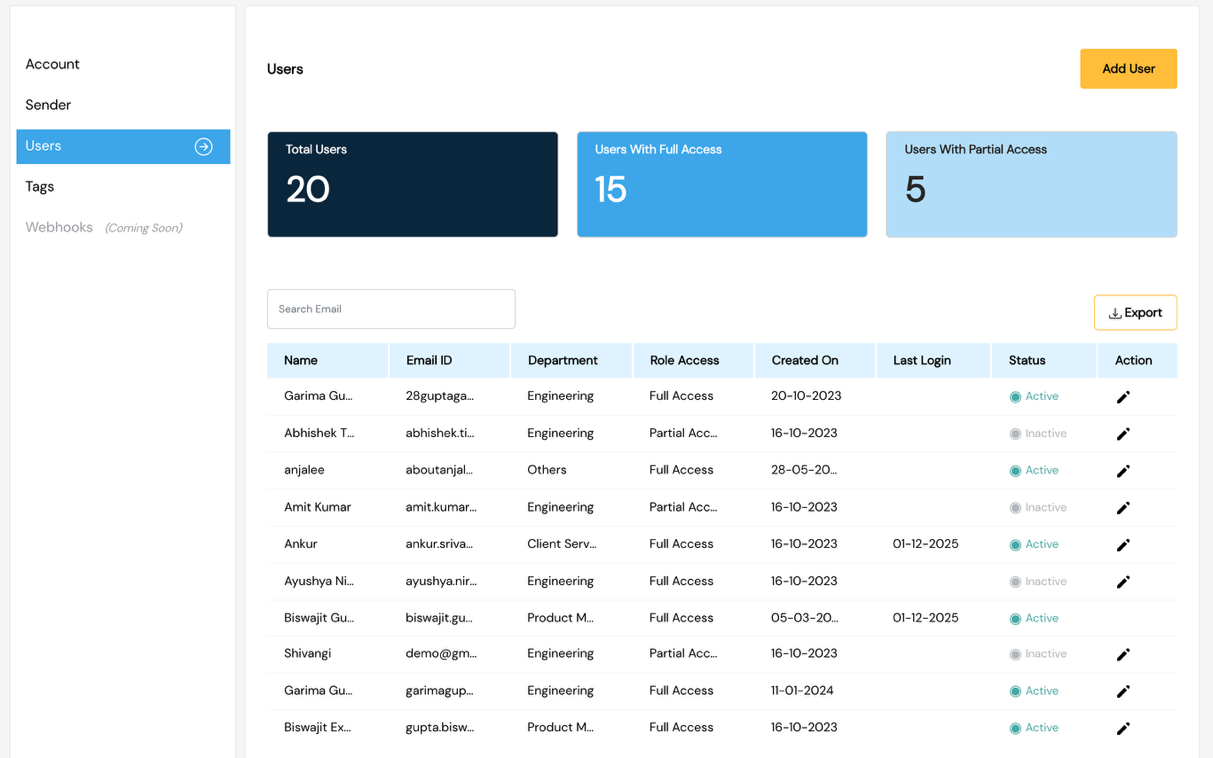
The View Users section provides administrators with visibility into all user accounts.
For each user, the following information is displayed:
| Field | Description |
|---|---|
| Name | Display name of the user |
| Email ID | Registered login email |
| Department | Assigned business department |
| Role Access | Full / Partial access permissions |
| Created On | Date the user account was provisioned |
| Last Login | Most recent login activity timestamp |
| Status | Active / Inactive |
| Action | Edit option — available only for Full Access administrators |
Add Users
Administrators can onboard new users through a guided multi-step process:
Step 1 — User Details
All the following fields are mandatory:
- Full Name
- Email Address (used as login ID)
- Mobile Number
- Department
Step 2 — Access Details
Choose the appropriate access level:
- Full Access — Complete control over modules and configuration features
- Partial Access — Restricted, task-specific access based on assigned responsibilities
Available Permissions (toggle-enabled):
Messages, Conversations, Catalogue, Campaigns, Maker-Checker, Templates, Groups, User Opt-In, Settings, Embedded Signup, MSISDN Masking, Number Masking
Access Matrix:
| Module | Full Access | Partial Access |
|---|---|---|
| Messages | View, Print, Export Reports; View & Upload User Consent | View Dashboard & Reports |
| Campaigns | View, Download, Create, Copy and Manage | View Dashboard only |
| Templates | View, Download, Create and Edit | View Dashboard only |
| Groups | View, Download, Create and Edit | View Dashboard only |
| Settings | Account, Users — full CRUD; MSISDN & Numeric masking controls | Account & Users — View only |
Step 3 — Channel Details
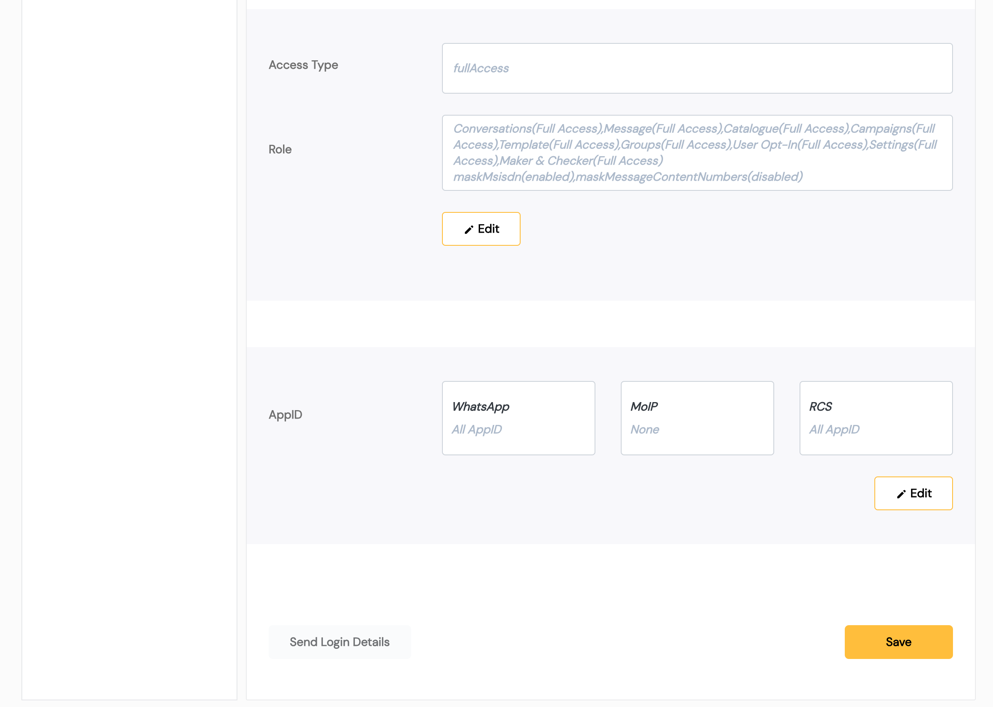
Assign channel access — users may be mapped to a specific WhatsApp / RCS Sender Number (App ID), or all available App IDs within the enterprise.
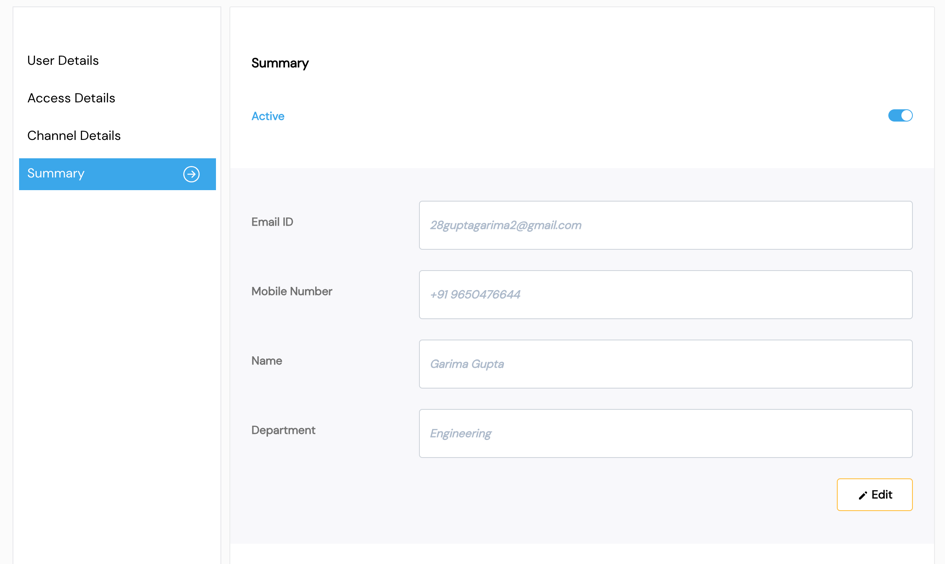
Step 4 — Summary
A summary screen displays all entered details before final creation.
Edit User
The Edit User feature allows administrators with Full Access to modify:
- User Details (Name, Mobile Number, Department)
- Access Type (Full Access / Partial Access)
- Module Permissions
- Channel Access
The Email ID field is non-editable, as it acts as the primary login credential and unique identifier for each user. Administrators can also change user status (Active/Inactive) and resend onboarding details if needed.
Screenshots
View Users
Edit User